
Interface Basics
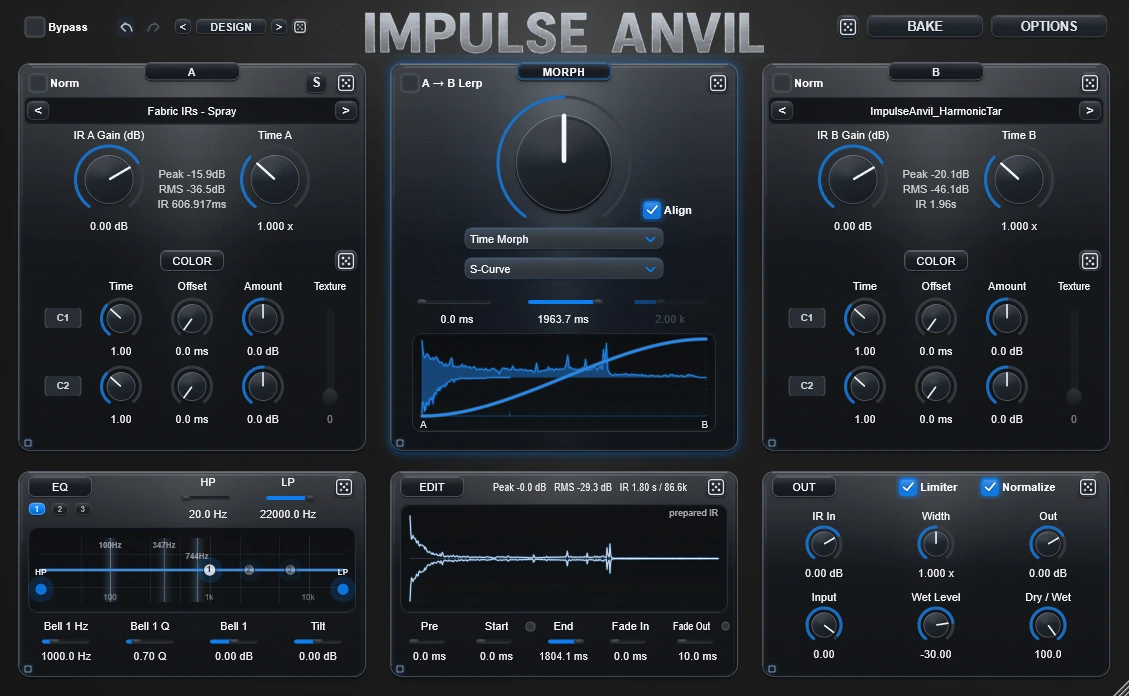

Impulse Anvil is built around one Overview and a small number of deeper workspaces. The same state follows you between them.
Overview
A, Morph and B form the main construction row. EQ, Edit and Out finish the response below. Clicking the empty background of A, B or Morph selects what you are auditioning immediately.
Focus View
Each of the six panels can expand into Focus View. Use the panel Focus control or double-click genuine empty panel space. The exact live controls are re-laid out at a larger scale - no duplicate parameter page is created.
Use Esc or click the exposed outer plugin background to return to Overview. See the dedicated Focus View guide.
Undo / Redo
The global Undo and Redo controls track deliberate Impulse Anvil edits as meaningful steps. Examples include an IR load, Morph-mode change, Random action, a Draw/Path/Glue/Omni gesture or a preset load. The curve toolbar's local U remains available for curve-only undo.
LOAD opens the IR Browser
LOAD opens the in-plugin browser for A or B. Single-click inspects a candidate; Enter, double-click or LOAD INTO A/B commits it. Search, stats, waveform preview and Compare help you decide before changing the slot.
See IR Browser.
Morph Mode browser
The Morph Mode control opens an in-editor browser with the mode list on the left and three explanations on the right: Use it for, How Morph behaves and Technical. Arrow keys navigate; Enter or double-click confirms; Esc closes.
DESIGN
The persistent bottom DESIGN navigator moves through available designs. Click the design name to open the full DESIGN workspace for browsing, importing, saving and editing compatible theme JSON files. OPTIONS remains a short utility menu for presets, reset and About.
Tooltips
Hover the main controls for application-first help. The deeper Morph explanation lives in the Morph browser so normal hovering stays readable.